In this Adobe Premiere Pro training course, students will learn the fundamentals of non-linear editing.
Class goals :
Learn to comfortably navigate the user interface
Learn to do rough cuts, trims and 3-point editing
Learn to add transitions
Learn to create titles and credits
Content of Training Premiere Pro CS6 / Introduction
Class Outline
Touring Adobe Premiere Pro CS6
Introducing Adobe Premiere Pro CS6
Presenting the standard digital video workflow
Enhancing the workflow with high-level features
Touring the Adobe Premiere Pro workspace
Customizing the workspace
Capturing Video Assets
Capturing video
Capturing an entire tape
Using batch capture and scene detection
Tackling manual analog movie capture
Capturing HDV and HD video
Selecting Settings, Adjusting Preferences, and Managing Assets
Selecting project settings by sequence
Three types of settings
Project settings
Importing assets
Taking a closer look at images
Managing media in the bins
Exploring additional bin features
Finding assets with the Media Browser
Importing Tapeless Media
Using a tapeless workflow
Using Media Browser
Importing P2 and XDCAM media
Mixing media formats
Creating Cuts-Only Videos
Using a storyboard to build a rough cut
Editing clips on the Timeline
Moving clips to, from, and within the Timeline
Working with Source Monitor editing tools
Adjusting clips in the Trim panel
Using other editing tools
Adding Video Transitions
Using transitions with restraint
Trying some transitions
Changing parameters in the Effect Controls panel
Using A/B mode to fine-tune a transition
Applying transitions to multiple clips at once
Adding audio transitions
Creating Dynamic Titles
Strengthening your project with titles
Changing text parameters
Building text from scratch
Putting text on a path
Creating shapes
Making text roll and crawl
Adding text effects: sheens, strokes, shadows, and fills
Applying Specialized Editing Tools (If Time Allows)
Exploring the timesaving editing tools
Replacing a clip and replacing footage
Using Sync Lock and Lock Track
Editing with In and Out points around a clip
Creating subclips from the Source Monitor
Multicamera editing
Training Premiere Pro CS6 / Introduction
Onze voordelen :
Type of training: Inter-company, intra-company and individual
100% flexible & personalised training : You choose the place, the dates and the training program
Offer request : Response within 24 hours
50% discount for SME’s from Brussels-Capital Region
Free parking, lunch & drinks
Free use of our Digital Competence Centre: Manuals, courses, exercises, …
Course Description As a graphic designer, you are starting to familiarize yourself with image creation and editing using Photoshop. Understanding the different tools and features available in Photoshop will help you to maximize your creative potential. In this course, you’ll work with several tools and features to edit images using Photoshop.
Class goals :
explore the Photoshop interface and use several tools for selecting parts of images, and will move, duplicate, and resize images.
learn to use layers, and to apply layer effects and filters to create special effects.
use painting tools and blending modes to create shading effects, and will perform adjustments to contrast and color balance.
save images in formats for print and web use.
Content of Adobe Photoshop Level 1
This course is intended for new users of Photoshop.
Training Adobe Photoshop Level 1
Onze voordelen :
Type of training: Inter-company, intra-company and individual
100% flexible & personalised training : You choose the place, the dates and the training program
Offer request : Response within 24 hours
50% discount for SME’s from Brussels-Capital Region
Free parking, lunch & drinks
Free use of our Digital Competence Centre: Manuals, courses, exercises, …
Course Description As a graphic designer, you are starting to familiarize yourself with image creation and editing using Photoshop. Understanding the different tools and features available in Photoshop will help you to maximize your creative potential. In this course, you’ll work with several tools and features to edit images using Photoshop.
This comprehensive course starts with the basics of image management and takes you step by step all the way through Aperture’s powerful photo editing, image retouching, proofing, publishing, and archiving features.
Class goals :
After completing this course, students will be able to understand:
Introduction to the Aperture interface
Using Stacks to organize your photos
Working with Projects, Albums, Smart Albums
Using Loupe and Zoom tools
Working with metadata
Understanding the adjustment controls
Creating images using versioning
Building Web Galleries
Creating customized books
Printing contact sheets
Working with external editors
Content of An Introduction to Aperture 3
Exploring the Aperture Workflow
Opening Aperture
Getting to know the Aperture Interface
Using the Aperture Layouts
Customizing the Workspace
Understanding Camera RAW
Working with Aperture’s File Structure
Selecting an Alternate Aperture Library
Quitting Aperture
Importing Images Into Aperture
Importing Images from a Disk
Adding Metadata
Adding Custom Filenames
Importing Images from iPhoto
Importing Images from a Memory Card
Organizing and Rating Images
Working with Stacked Images
Organizing Imported Images
Emailing Images from Aperture
Rating Images
Exploring the Viewer
Making Selects Using Keyboard Shortcuts
Evaluating Images at Full Resolution
Navigating the Browser
Rating Stacked Images
Managing Multiple Projects
Creating a Smart Album
Image Adjustment Basics
Preparing Images for Adjustments
Framing Your Images
Making Automatic Adjustments
Analyzing Image Information with the Histogram
Using the Spot & Patch Tool
Using the Lift and Stamp Tools
Adjusting Spot & Patch Options
Comparing an Adjusted Image to the Master Image
Creating Web Output
Organizing the Projects Panel Using Favorites
Preparing the Project
Creating a Web Journal
Adding Images and Pages
Choosing a Site Theme
Customizing Text
Adding Text
Sizing and Positioning Images
Previewing Images in a Slideshow
Exporting a Web Journal
Evaluating Images
Preparing the Project
Creating a Light Table Album
Adding Images to the Light Table
Evaluating Images in the Light Table
Evaluating Images in Full Screen Mode
Switching Between Views
Printing the Light Table
Finishing, Delivering and Archiving Images
Preparing the Project
Customizing the Full Screen Mode
Adjusting Luminance
Adjusting Tint and Saturation
Matching Color Between Images
Applying Adjustments to a Group of Images
Creating a Smart Album
Printing Contact Sheets
Authoring a Disc of Final Images
Backing Up the Library
Advanced Organization and Rating
Preparing the Project
Creating and Editing Stacks
Editing Stacks During Import
Using Keywords
Assigning Keywords to Images
Editing Metadata in Batches
Choosing Image ‘Picks’, Applying Ratings to Images
Creating Albums from Stacked Images
Searching and Filtering Images
Advanced Editing
Preparing the Project
Adjusting RAW vs. Non-RAW Images
Adjusting White-Balance Temperature Extremes
Using Metadata Sets
Adjusting Highlights and Shadows
Converting Color Images to Grayscale
Applying a Color Monochrome Adjustment
Sharpening and Noise Reduction
Sharpening and Noise Reduction for RAW Images
Taking a Closer Look at Exposure
Working with an External Editor
Deleting Versions
Advanced Output
Soft Proofing Images
Using Multiple Displays
Creating Book Albums
Creating a Smart Web Gallery Album
Advanced File Structure and Archiving
Preparing the Project
Exporting a Master File
Moving the Aperture Library
Creating Multiple Libraries
Backing Up and Archiving
Creating Multiple Vaults
Training An Introduction to Aperture 3
Onze voordelen :
Type of training: Inter-company, intra-company and individual
100% flexible & personalised training : You choose the place, the dates and the training program
Offer request : Response within 24 hours
50% discount for SME’s from Brussels-Capital Region
Free parking, lunch & drinks
Free use of our Digital Competence Centre: Manuals, courses, exercises, …
This three-day, hands-on course teaches students to perform basic editing functions while becoming familiar with the Final Cut Pro user interface. In this course, you will cut a scene from the TNT television series Leverage, create a promo for Seaworld’s Believe documentary, aswell as master filters and effects as you edit a segment of Playing for Change, the international music-creation event.
Class goals :
After completing this course, students will be able to:
Mark clips, using insert, overwrite and drag-and-drop editing
Trim edit points
Use Ripple, Roll, and Extend edits as well as the Slip and Slide tools
Apply filters and changing Motion properties
Edit audio and audio creation
Finish and final output
Content of An Introduction to Final Cut Pro 7
Editing in Final Cut Pro
Launching Final Cut Pro
Final Cut Pro Interface
Following a Workflow
Starting a Project
Importing Clips
Navigating Clips
Marking and Editing Clips
Playing and Navigating a Sequence
Organizing Project Elements
Saving, Hiding and Quitting Final Cut Pro
Building the Rough Cut
Working with Projects
Editing a Rough Cut
Making Overwrite Edits
Managing Timeline Tracks
Making Insert Edits
Editing Audio Clips
Moving Clips in the Timeline
Creating a New Version
Drag-and-Drop Editing
Changing the Volume of Edited Clips
Finishing the Rough Cut
Adding Cutaways
Editing to Narration
Editing to Music
Copying, Cutting, Pasting, and Positioning Clips
Screening and Sharing a Sequence
Trimming Clip Duration
Understanding Trimming
Rippling Edit Points
Rippling in the Viewer and by Numbers
Trimming Clips on the V2 Track
Trimming One Track of a Linked Clip
Refining Edit Points
Trimming Two Edit Points
Slipping One Clip
Rolling Two Edit Points
Sliding Clips to Refine Position
Dragging Clips to New Locations
Keeping Linked Clips in Sync
Refining the Edit Process
Labelling Project Elements
Creating Subclips
Adding Markers to Clips
Using Markers to Align Actions
Using Storyboard Editing
Performing Replace Edits
Editing Multicam Footage
Customizing Final Cut Pro
Reconnecting Media
Working with Mixed Format Sequences
Working with Master Clips
Logging Information in Browser Columns
Finding Project Items
Customizing Shortcut Keys and Button Bars
Saving and Loading Layouts
Optimizing User Preferences
Capturing & Transferring Footage
Connecting Sources for Capture
Choosing Preset Format Settings
Previewing and Marking Your Source
Logging Clips
Choosing Clip Settings
Choosing Capture Settings
Choosing Capturing Options
Setting Capture Preferences
Transferring Files from Tapeless Sources
Applying Transitions
Evaluating the Project
Understanding Transitions
Viewing Transition Options
Applying Transitions
Modifying and Copying Transitions
Using the Transition Editor
Changing Transition Parameters
Previewing and Rendering Effects
Mixing Audio Tracks
Preparing the Project for Mixing
Organizing and Editing Audio Effects
Monitoring and Adjusting Audio Levels
Applying Transitions to Fade Volume
Setting Keyframes to Change Volume
Using the Audio Mixer
Recording a Narration Track
Importing Audio Files
Creating Titles
Working with Video Generators
Adding a Lower Third
Applying a Boris Title
Adding Mattes, Effects and Still Images
Creating a Credit Roll
Using Master Templates
Changing Motion Properties
Entering Speed Changes
Using the Speed Tool
Creating a Freeze Frame
Changing Motion Parameters
Animating Motion Parameters
Applying Filters
Applying and Viewing Video Filters
Viewing and Modifying Filter Parameters
Applying Audio Filters
Using a Color Correction Filter
Animating Filters
Finishing and Outputting
Detecting Audio Peaks
Adjusting Video Levels for Broadcast
Sharing Clips and Sequences
Exporting a QuickTime Movie
Using Other Export Options
Exporting a Still Frame
Outputting to Tape
Making a Timecode Window
Burn and Backing Up Projects
Training An Introduction to Final Cut Pro 7
Onze voordelen :
Type of training: Inter-company, intra-company and individual
100% flexible & personalised training : You choose the place, the dates and the training program
Offer request : Response within 24 hours
50% discount for SME’s from Brussels-Capital Region
Free parking, lunch & drinks
Free use of our Digital Competence Centre: Manuals, courses, exercises, …
This Apple Final Cut Pro (FCP 101) training course is a three-day, hands-on course that teaches students to perform basic editing functions while becoming familiar with the Final Cut Pro user interface. In this course, you will cut a scene from the TNT television series Leverage, create a promo for Seaworld’s ‘Believe documentary’, as well as master filters and effects as you edit a segment of Playing for Change, the international music-creation event.
Class goals :
After completing this course, students will be able to:
Mark clips, using insert, overwrite and drag-and-drop editing
Trim edit points
Use Ripple, Roll, and Extend edits as well as the Slip and Slide tools
Apply filters and changing Motion properties
Edit audio and audio creation
Finish and final output
Content of An Introduction to Final Cut Pro X
Preparing to Edit in Final Cut Pro X
Exploring the Interface
Importing Footage
Organising Clips in an Event
Organising Optimising & Analysing
Organising Media with Keywords
Working in the Project Library
Working in the Event Library
Creating a Rough Cut
Building the Rough Cut
Performing Insert Overwrite & Connect Edits
Adding to the Storyline
Fine-Tuning a Rough Cut
Using the Trimming Tools
Replacing Clips & 3 Point Editing
Auditioning Clips
Adjusting Clip Timing
Creating Secondary Storylines & Compound Clips
Completing the Cut
Editing the Soundtrack
Applying & Modifying Transitions
Creating Hold Frames & Re-timing Video
Controlling Video Quality
Working with Music
Enhancing the Soundtrack
Adding simple titles
Applying Effects & Finishing
Adding Effects
Matching & Correcting Colour
Secondary Colour Correction
Working with Themes & Placeholders
Applying & Animating Titles
Transforming, Cropping & Distorting Images
Working with Generators & Backgrounds
Exporting and Sharing a Project
Publishing for web and devices
Training An Introduction to Final Cut Pro X
Onze voordelen :
Type of training: Inter-company, intra-company and individual
100% flexible & personalised training : You choose the place, the dates and the training program
Offer request : Response within 24 hours
50% discount for SME’s from Brussels-Capital Region
Free parking, lunch & drinks
Free use of our Digital Competence Centre: Manuals, courses, exercises, …
This ActionScript Training class teaches students how to program in ActionScript to make Flash sites more interactive and dynamic.
Class goals :
Learn to work with event handlers
Understand the hierarchy of timelines
Learn to work with target paths
Learn to work with ActionScript’s built-in objects
Learn to write functions
Learn to write flow control statements in ActionScript
Learn to create forms for passing data in and out of Flash
Content of Training ActionScript 3.0
Class Outline
Navigating the Flash Timeline
Placing code on the Flash timeline
Working with Events and Functions
Creating event listeners and event handling functions
Creating navigation with a button click
Creating Animation with ActionScript
Reviewing the starting file
Controlling MovieClip properties with ActionScript
Creating animation using ActionScript tweens
Creating ActionScript in External Files
Creating an ActionScript file
Creating instances of a class file in Flash
Using ActionScript and Components to Load Content
Creating an instance of the List component and setting its parameters
Adding an instance of the UILoader component
Adding a CHANGE event listener to the List component
Loading SWF files into a UILoader component
Creating the gallery file
Adding a scroll bar to the text field
Creating Preloaders in ActionScript 3.0
Tools in the testing environment
Creating a text field and progress bar to track loading
Inserting ActionScript to track progress of the UILoader component
Controlling the frames of a MovieClip to reflect loading progress
Using Arrays and Loops in ActionScript 3.0
Examining the starting file
Adding MovieClip instances to the stage from the Library
Generating multiple instances with a for loop
Adding event listeners to the Block instances
Creating animation using ENTER_FRAME
Adding the testDone() function
Creating a Radio Button Quiz in an ActionScript File
Examining the starting file
Creating a new ActionScript file
Setting up the RadioButtonQuiz class
Adding variables to the RadioButtonQuiz class
Creating the quiz functionality
Formatting text with ActionScript
Creating the quiz
Creating checkAnswer() – the final function
Integrating your new class into the Flash project
Training ActionScript 3.0
Onze voordelen :
Type of training: Inter-company, intra-company and individual
100% flexible & personalised training : You choose the place, the dates and the training program
Offer request : Response within 24 hours
50% discount for SME’s from Brussels-Capital Region
Free parking, lunch & drinks
Free use of our Digital Competence Centre: Manuals, courses, exercises, …
This ActionScript Training class teaches students how to program in ActionScript to make Flash sites more interactive and dynamic.
In this intermediate Adobe Flex training class, students will build upon their Adobe Flex skills and learn to work with data sets, custom events and components, DataGrids and drag and drop controls.
Class goals :
Learn to work with data sets
Learn to declare and use custom events
Learn to create custom components with ActionScript 3.0
Learn to use DataGrids and ItemRenderers
Learn to use drag and drop
Content of Training Flex 3 / Intermediate
Class Outline
Using Controls and Repeaters with Datasets
Using Datasets
Displaying the Categories Using a HorizontalList and an itemRenderer
Displaying Grocery Products Based on Category Selection
Coding States to Display Detailed Product Information
Placing Products in the Shopping Cart
Using Custom Events
Understanding the Benefits of Loosely Coupled Architecture
Dispatching Events
Declaring Events for a Component
Identifying the Need for Custom Event Classes
Building and Using the CategoryEvent
Creating and Using the ProductEvent Class
Understanding Event Flow and Event Bubbling
Creating Custom Components with ActionScript 3.0
Introducing Building a Component with ActionScript 3.0
Creating the Structure of the Class
Overriding the createChildren() Method
Sizing and Positioning in Flex 3
Understanding the measure() Method
Overriding the updateDisplayList() Method
Using DataGrids and Item Renderers
Introducing DataGrids and Item Renderers
Adding a Generic DataGrid to ChartPod
Adding HTTPService Calls to Dashboard
Displaying the Shopping Cart with a DataGrid
Using the AdvancedDataGrid
What You Have Learned
Using Drag and Drop
Introducing the Drag and Drop Manager
Dragging and Dropping Between Two DataGrids
Dragging and Dropping Between a DataGrid and a List
Using a Nondrag-Enabled Component in a Drag-and-Drop Operation
Dragging a Grocery Item to the Shopping Cart
What You Have Learned
Training Flex 3 / Intermediate
Onze voordelen :
Type of training: Inter-company, intra-company and individual
100% flexible & personalised training : You choose the place, the dates and the training program
Offer request : Response within 24 hours
50% discount for SME’s from Brussels-Capital Region
Free parking, lunch & drinks
Free use of our Digital Competence Centre: Manuals, courses, exercises, …
This is an introductory ColdFusion class for Web designers who are brand new to ColdFusion 9. You will learn to process forms, manage sessions, write reusable code and create database-driven ColdFusion-based websites.
Class goals :
Learn to get data from a database and display it on the page
Learn to insert, Edit and Delete records from a database
Learn to pass data from one page and receive it on another using HTML Forms
Learn to create Dynamic Form Fields including Dynamic Select Lists
Learn to build a Search Interface
Learn to use Session Variables to provide Password Protection
Learn to call ColdFusion Components (CFCs) and Custom Tags
An Apache webserver training course which provides a technical introduction to installing, configuring and managing the Apache web server and to supporting CGI programming on the Apache server.
Class goals :
Content of Intro to Apache Web Server Administration
Getting started
Apache
Webservers
Apache features
Apache versions
Installing Apache
Installing XAMPP
Compiling Apache
Running Apache
Running Apache automatically: Unix/Linux & MS Windows
The term ‘Agile’ is increasingly being heard wherever software development is discussed, and a number of software development methodologies have been invented that fall under the Agile banner.
Class goals :
After completing this course, delegates will have gained the following skills:
Knowledge of what ‘Agile’ means to software development
Understanding of how agility helps manage risk
Understanding of the main Agile processes and their applicability
Content of Introduction to Agile Development
Agile Development
What Agile Isn’t…
The Drawbacks Of Traditional Development Methods
Agility Is An Attitude
People, Not Processes
The Agile Manifesto
Managing Risk
Iterative Development
Incremental Development
Client Involvement
Barriers To Agile Working
Agile and Fixed-Price Contracts
Scaling Agile
The Agile Toolkit
The Agile Tooklit
Managing Business Risk
Managing Technical Risk
Orthogonality
Technical Debt
Overview of Agile Methods
Extreme Programming
Test-Driven Development
Unified Process
Scrum
FDD
Crystal
Lean Development
Extreme Programming
Key Points
Values, Principles and Practices
The XP Project Lifecycle
XP Artefacts: Spikes and Stories
XP Advantages and Disadvantages
Testing and Integration
The Place of Testing and Integration in Agile Processes
Testing as Risk Management
Unit Testing
Testing Guidelines
Continuous Integration
Unified Process
Key Points
The Unified Process
UP and Agile
UP Variants: OpenUP, AUP, RUP
Work Products, Roles and Disciplines
The RUP Lifecycle
Phases and Iterations
RUP Best Practices
RUP Advantages and Disadvantages
Scrum
Key Points
The Scrum Process
Roles: Product Owner, Scrum Master and Team
Pigs and Chickens!
Artefacts
Meetings
Scaling Scrum
Scrum Best Practices
Scrum Advantages and Disadvantages
Agile Requirements and Estimating
Traditional Requirements Gathering
Managing Changing Requirements
Vision Documents
Features
User Stories
Estimating
Story Points
Velocity
Planning Poker
Test-Driven Development
Unit testing
Benefits and limitations
Test-Driven Development
The TDD process
Demo
Advantages and disadvantages
Behaviour-Driven Development (BDD)
Lean Development
The Toyota Way
Key Principles
Add Nothing But Value
Center on Those Who Add Value
Flow Value from Demand
Optimize Across Organizations
Applying Lean Principles to Software
DSDM
Key Points
DSDM Principles and Philosophy
DSDM Phases
Workshops
Prototypes
MoSCoW Prioritization
Timeboxing
DSDM Advantages and Disadvantages
Mastering Agility
Improve the Process
Rely on People
Eliminate Waste
Deliver Value
Seek Technical Excellence
Wrapup
Training Introduction to Agile Development
Onze voordelen :
Type of training: Inter-company, intra-company and individual
100% flexible & personalised training : You choose the place, the dates and the training program
Offer request : Response within 24 hours
50% discount for SME’s from Brussels-Capital Region
Free parking, lunch & drinks
Free use of our Digital Competence Centre: Manuals, courses, exercises, …






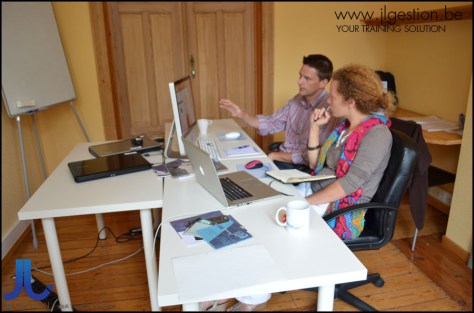
 Training-brussels - business training center in Brussels